
Setup guide
Get synced in minutes
Everything you need to connect AvenuePlus to Avenue to Learn — step-by-step with troubleshooting.
Step 1
Create your account
Sign up with your email in under a minute. AvenuePlus keeps your data private — we never share your grades.
Tip: Use your McMaster email if you have one; it makes reconnecting easier.
Step 2
Connect Avenue to Learn
Sign in with your MacID and password. Approve MFA on your phone when prompted — the same flow you use on Avenue.
Tip: Your credentials are encrypted and used only to sync your own courses.
Step 3
Run your first sync
Hit Sync Avenue on the dashboard. We pull courses, assignments, quizzes, grades, and announcements automatically.
Tip: Only your current-term courses show as active — old enrollments are filtered out.
Step 4
Track deadlines & submissions
See what's due soon, what's overdue, and what's submitted (including late submissions with hours-overdue counts).
Tip: Click any assignment to expand materials, rubrics, and what to submit.
Step 5
Stay synced automatically
Every time you open AvenuePlus with a valid session, we refresh your data in the background.
Tip: If your session expires, use Setup to reconnect or run the bookmarklet while logged into Avenue.
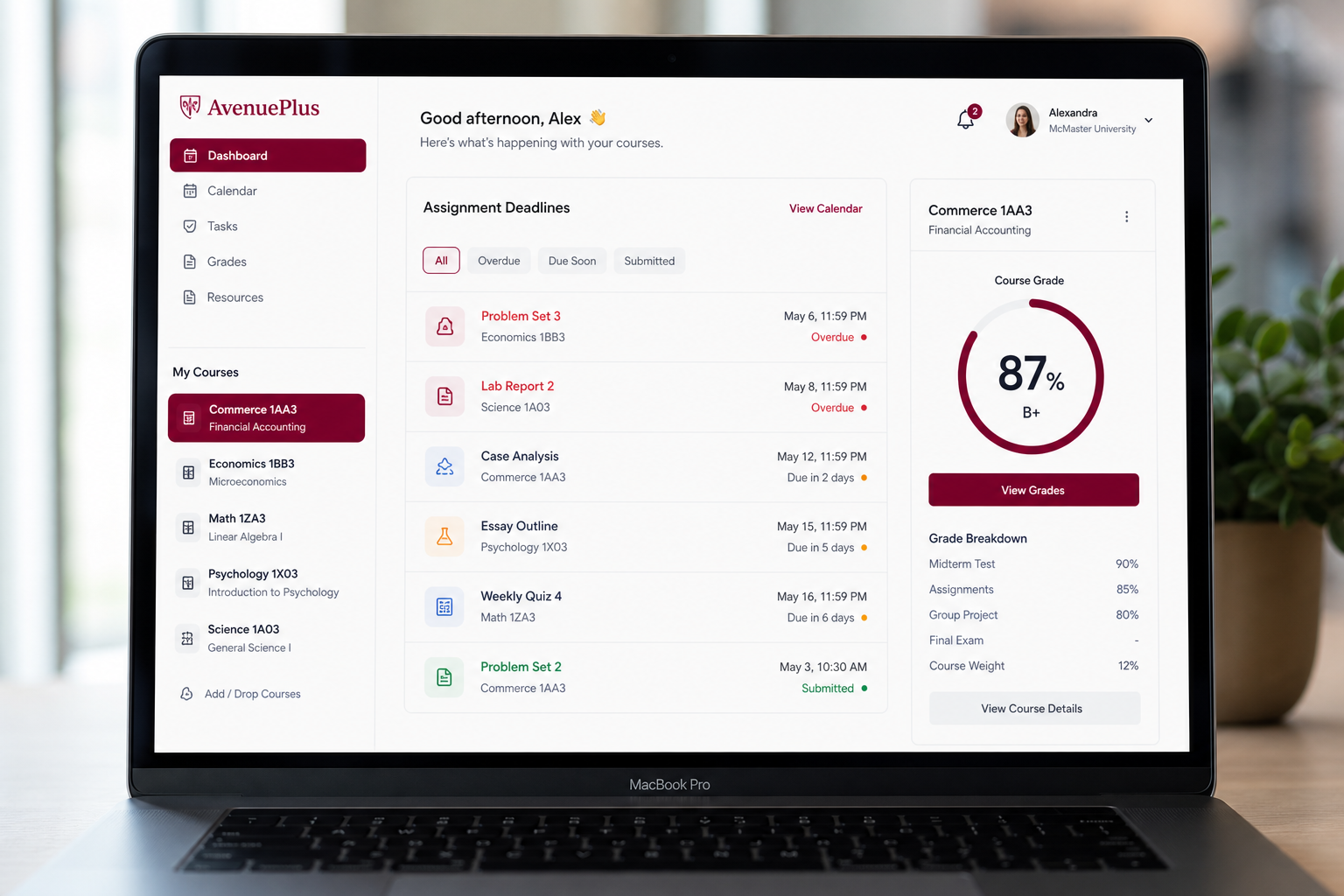
What your dashboard looks like
After sync, you'll see active courses, upcoming deadlines, course grades, and expandable assignment details with materials and submission status.
 Open dashboard
Active
2
Week 1 Nature Log
Submitted · 13 hr late
Poster Redesign
Due in 23 days · 30%
Bookmarklet fallback
If automatic sign-in fails, import data manually while logged into Avenue:
- Sign in to Avenue to Learn in your browser.
- Open AvenuePlus → Setup (in the app sidebar).
- Drag the "Avenue Import" bookmarklet to your bookmarks bar.
- While on Avenue, click the bookmarklet to import courses and assignments.
Troubleshooting
Shows “Not connected”
Your Avenue session expired. Go to Setup → Sign in with MacID, or use the bookmarklet while logged into Avenue in your browser.
Old courses still appearing
Refresh the page — active courses are recomputed from term codes on every load. Only current-term enrollments (e.g. 2265 in Summer 2026) stay active.
Submission shows overdue but I submitted
Run Sync Avenue from the dashboard. If Avenue's API is unreachable, use the bookmarklet on Setup to import submission data directly.
MFA / Authenticator stuck
Approve the push notification on your phone. If a browser window opened for login, complete MFA there — it can take up to a minute.
All set? Create your account and sync.
Join McMaster students using AvenuePlus to stay on top of Avenue.
Get started freeYour command centre for D2L and Brightspace — live sync, smart deadlines, grades, and assignments in one place.